How to Make an A2O LITE NEON AI Dance Video from Two Photos
Make the fixed NEON duo intro with two separate photos. Follow the sign-in, photo upload, review, task status and mobile download steps.
Last updated: 2026-10-19
NeonDanceAI makes the fixed A2O LITE “NEON” duo intro from two photos. This guide shows how to sign in, add one subject to each photo slot, submit a task and download the result from My videos.
A2O LITE is the group's official spelling; it is often written A20 LITE. This independent tool does not offer other songs, reference-video uploads or prompt entry, and is not affiliated with A2O LITE or A2O Entertainment.
Before you start
Prepare two separate image files. Each file should show one person or one pet clearly; choose two people or two pets for one video. A person-and-pet mix is not supported. Half-body or full-body pictures work better than a close-up face because the dance needs the subject's face and arms to be visible.
The upload control accepts JPEG, PNG or WebP files up to 10 MB each. If your phone saves a photo as HEIC, export a JPEG copy before uploading. Use photos you have permission to use; the site's terms do not allow celebrity or public-figure photos, and photos of anyone under 18 require a parent or guardian's permission.
| Effect | The fixed A2O LITE “NEON” duo intro |
|---|---|
| Inputs | Two separate photos, one subject in each |
| Allowed pair | Two people or two pets; mixed pairs are not supported |
| Opening position | Photo 1 starts in front |
| Output | 16:9 video; 15 seconds for people or 14 seconds for pets; reference audio included |
| Active tasks | Up to 3 videos at a time |
Step 1: Sign in
Open the NEON video creator. If you are signed out, select Choose photo in either empty slot or the Sign in to upload your photos prompt. Sign in or create an account; the site returns you to the upload section. Uploading and checking My videos both require an account.
Step 2: Add Photo 1 and Photo 2
Use Photo 1 for the subject who should appear in front at the opening. Use Photo 2 for the other dancer or pet. Select each file in its own slot. Wait for each upload to finish and check that both previews appear before continuing. You can replace or remove a photo if it is in the wrong slot.
In each preview, check the Person or Pet choice. The page may classify a photo automatically; use the visible selector to correct it if needed. Both slots must use the same category. The site blocks a people-and-pet pair before generation.
If your two subjects are in one group photo
The creator needs two image files and does not split a group photo for you. Make two copies in your phone's or computer's photo editor. Crop the first copy around one person or pet and save it as Photo 1; crop the second around the other subject and save it as Photo 2. Leave enough room to show the face and arms (or the pet's body). If the crop cuts off too much or both subjects overlap, use two clearer pictures instead. Do not upload the original group photo as one slot.
Step 3: Review the pair and create the task
Select Create NEON video. The page checks your video allowance first. If you need more, complete checkout, wait for the balance to update, then return to the creator and select Create NEON video again. With an allowance available, the first creation opens a review dialog. Check both photos, their Person/Pet labels and the roles shown, then select Create video. For a resumed or already confirmed task, follow the instructions shown on the page. Each request uses one video allowance; failed generations return it automatically. Up to three videos can be active at once, so wait for a task to finish if all three are in progress.
Step 4: Check status in My videos
After submission, the task panel shows that the video is pending or processing. You can also open My videos while signed in. The list shows task status and refreshes while a task is active. Open a finished item to view its video and use Download. If a task fails, follow the status message on its detail page; failed generations return the video allowance automatically.
Step 5: Download on a phone
Open the finished task's detail page and tap Download. On Android, check the browser's Downloads list if you do not see the MP4 in your gallery. On iPhone or iPad, the browser may open a video preview instead of saving directly; use its share menu and choose Save to Files, then select a folder you can find again. The page also offers Open in new tab if you need to use the browser's save or share controls.
Interface walkthrough
These screenshots use A/B placeholder portraits and a simulated task to show the upload, review and My videos screens. The library preview reuses a public NEON example; it is not a result generated from those placeholders or a completed paid order.
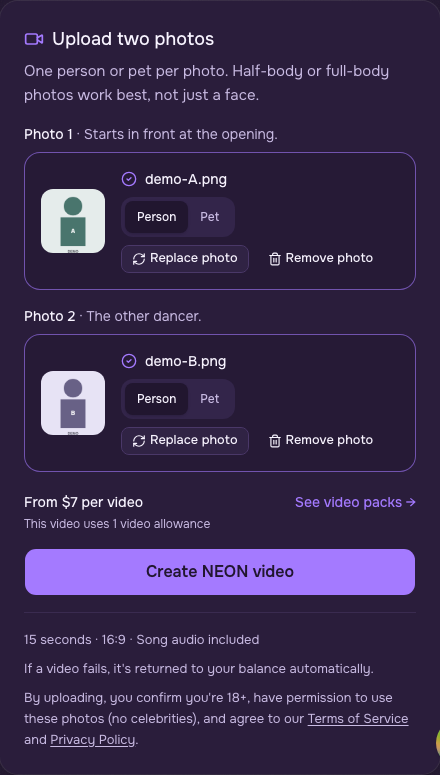
Example photos in Photo 1 and Photo 2. Photo 1 is assigned the opening position in front.
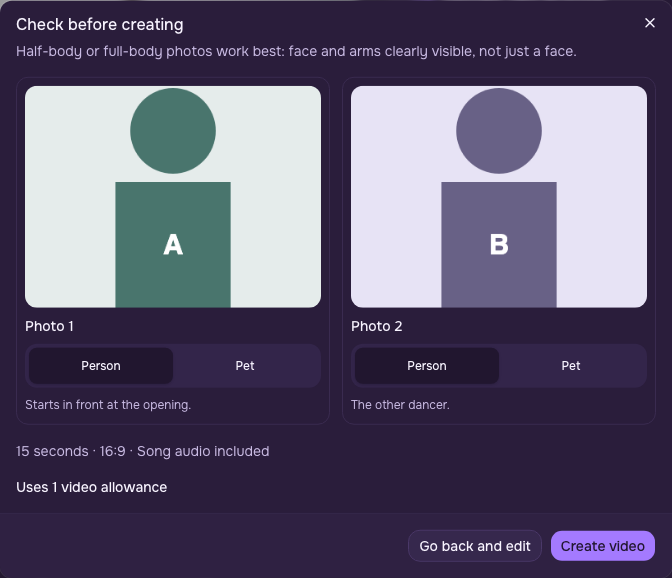
Review both previews, their Person or Pet labels, and the displayed allowance before confirming.
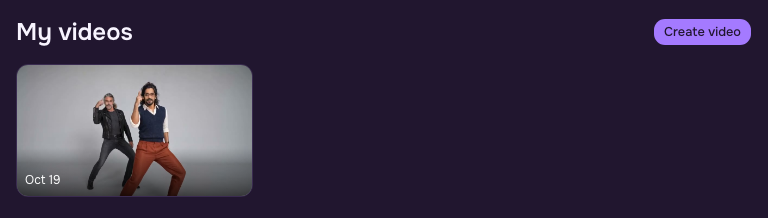
The task and status shown here are demo data for the walkthrough, not a real paid generation result.
Frequently asked questions
Do I need to sign in before uploading?
Yes. Choose a photo in the creator and sign in or create an account when prompted. You will return to the upload section after signing in.
Can I use one person and one pet?
No. This NEON template accepts two people or two pets. A person-and-pet pair is not supported.
Can I choose another song or add a prompt?
No. The tool makes the fixed A2O LITE NEON duo intro from two photos. It does not offer a song picker, reference-video upload or prompt field.
Where can I check a video that is still processing?
Open My videos while signed in. The task appears there with its current status, and you can open the item to download a finished video.
How many videos can run at once?
Up to three videos can be active at the same time. Wait for an active task to finish before starting another when the limit is reached.
Read what the A2O LITE NEON dance is or learn about NeonDanceAI. When you are ready, open the creator and add two photos.