How to Choose Photos for a NEON AI Dance Video
Use this six-point photo-framing guide to choose one clear subject for each NEON AI dance photo. See separate tips for people and pets.
Last updated: 2026-10-20
Choose two separate photos, with one clear subject in each, for a NEON AI dance video. This guide helps you compare framing before uploading; it does not predict or guarantee how a generated video will look.
| Photo files | Two separate images, one subject in each |
|---|---|
| Supported subjects | Two people or two pets; mixed pairs are not supported |
| Useful framing | A clear face, visible body, and some space around the subject |
| Accepted files | JPEG, PNG or WebP; up to 10 MB per photo |
| Opening position | Photo 1 is assigned to the subject in front at the opening |
| Result | 16:9 landscape video; 15 seconds for two people, 14 seconds for two pets |
Compare six common photo situations
The original composition illustration below labels six framing examples.
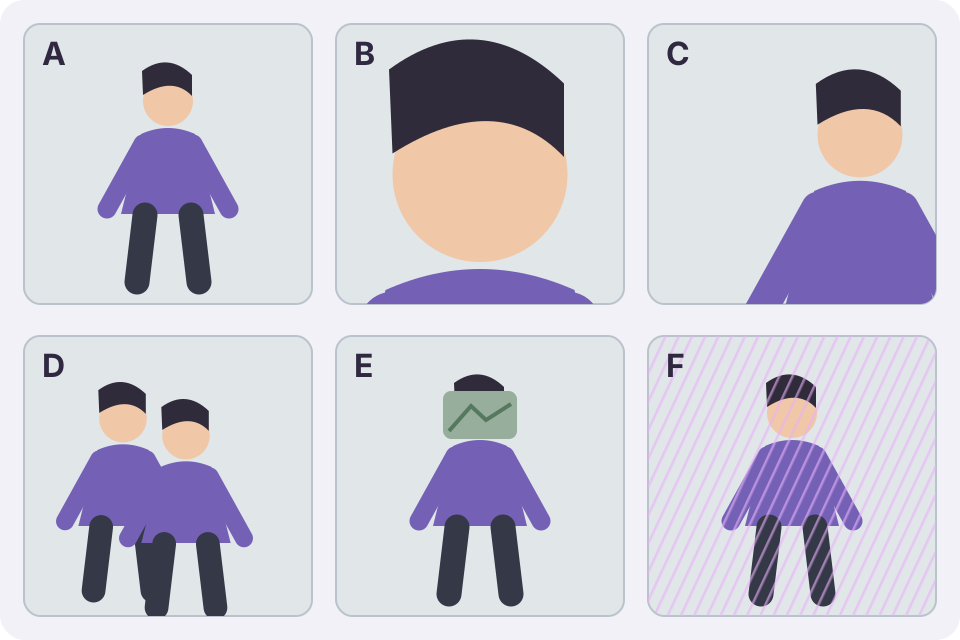
- A — Clear single subject: A person or pet is easy to identify, facing forward, with the face and more of the body visible. This is a practical starting point; leave some space around the subject.
- B — Face close-up: The face is visible, but little of the body appears. Choose a wider photo that also shows the torso and arms, or the pet's body.
- C — Body cropped too tightly: The frame cuts off the torso, arms, legs or much of the pet. Use a photo with more of the body in frame and avoid cutting close to the subject.
- D — Overlapping people or pets: Several subjects overlap or compete for attention. Select a different image or make a separate crop for each input so only one subject is prominent in each file.
- E — Face or body obscured: Hair, hands, clothing, toys or another object covers important features. Choose a less obstructed view where the face and body are visible.
- F — Strong filter or blur: Heavy effects soften details or change colors. Use a sharper, more natural-looking original photo when available.
Tips for people and pets
For a person, look for a well-lit, front-facing image with the face, torso and arms visible. A half-body or full-body frame leaves more of the person in view than a tight face crop. Avoid a pose where another person or an object hides the subject.
For a pet, choose a sharp image where its face is visible and more of its body fits in the frame. A front-facing or slightly angled view can make the pet easier to distinguish. Keep other animals and objects from covering it.
Use one person in each of two files, or one pet in each of two files. The current creator supports two people or two pets; it does not support a person-and-pet mix or automatically separate a group photo. Photo 1 is assigned to the subject in front at the opening. For the upload and review steps, see how to make a NEON AI dance video from two photos. For pet-specific guidance and an example, see the NEON AI pet dance guide.
Check the files before uploading
Use JPEG, PNG or WebP files up to 10 MB each. Choose photos you have permission to use and follow the Terms of Service. The step-by-step two-photo creation guide explains uploading and reviewing the pair. If you already have a finished landscape video, see how to make a NEON video vertical.
Frequently asked questions
What kind of photo should I choose?
Choose a clear, well-lit photo where one person or one pet faces the camera and has some visible body space around them.
Can I use a group photo as one of the two inputs?
Choose two separate image files, with one subject in each. The creator does not split a group photo into separate subjects for you.
Can I combine one person and one pet?
No. Choose two people or two pets. A person-and-pet pair is not supported.
Which image formats and sizes are accepted?
Each photo can be a JPEG, PNG or WebP file up to 10 MB. See the two-photo creation guide for the upload steps.
Ready to continue? Open the NEON creator, or learn about NeonDanceAI.