How to Make a NEON AI Dance Video Vertical
Fit an existing NEON dance clip into a 9:16 portrait canvas. Compare fit, blurred-background and center-crop layouts, then check the full video and audio.
Last updated: 2026-10-20
This guide shows how to place an existing NEON dance video on a 9:16 portrait canvas using a general video editor. The comparison uses the same frame in three layouts to demonstrate framing; it is not a newly generated video.
| Source video | 16:9 landscape video |
|---|---|
| Portrait canvas example | 1080 × 1920 pixels (9:16) |
| Fit example | About 1080 × 608 pixels, with about 656 pixels above and below |
| Layouts | Fit with space, fit over a blurred background, or center crop |
| What stays available | Only the picture and sound already present in the source file |
Compare three portrait layouts
The cards use one frame from the same public NEON sample. Fit preserves the whole landscape image and leaves space around it. Blurred background keeps the complete clip in front and fills the canvas behind it. Center crop fills the portrait frame by cutting off the left and right sides; either dancer can leave the frame as they move.
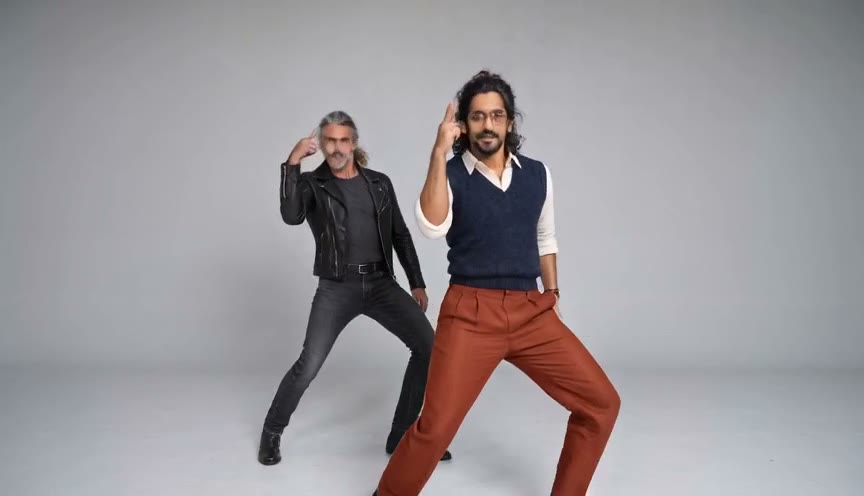
The cards show a single still frame, so preview the entire clip to see how the crop behaves during movement.
Make a vertical copy of your video
1. Download and keep the original
Download the finished NEON video and keep that file unchanged. Create a separate editing copy so you can compare the export with the original or restart with another layout.
2. Create a 9:16 portrait canvas
In a common editor such as CapCut or iMovie, create a portrait project with a 9:16 frame. For example, a 1080 × 1920 canvas is 9:16. Available settings vary by editor, so use its canvas and export options.
3. Choose a layout
- Fit with space: Scale the full original frame until it fits inside the portrait canvas. This preserves both sides of the clip, with unused space above and below.
- Fit over a blurred background: Keep the full clip as the foreground layer, then fill the canvas behind it with a larger, blurred copy of the same video. This uses the complete source frame in front, though the background is enlarged.
- Center crop: Fill the canvas by enlarging the video and cutting off the sides. This can make dancers or movement disappear near the edges. Move the crop only if the editor allows it and the full dance remains visible.
For example, fit a 16:9 landscape video to the width of a 1080 × 1920 portrait canvas. The image will be about 1080 × 608 pixels, leaving about 656 pixels above and below. Use your own file's dimensions or aspect ratio to estimate margins for other videos.
4. Check the opening, middle and ending
Preview the whole timeline, not only the poster frame. Check the opening, the middle when the dancers change position, and the ending. Make sure both dancers and their movements stay visible in the foreground or crop. If either dancer is cut off, switch to fit or a blurred background. Reframing cannot recover anything that was already outside the original video frame.
Also listen to the full preview. Confirm that any sound from your source is present and in sync, and that the export settings have not muted it.
5. Export and review the file
Export a copy with the portrait canvas selected. When export finishes, open the saved file and check that it plays, has the expected portrait shape, shows the full movement you chose to preserve, and includes the intended audio. Editor controls and export options differ, so follow the labels in the app you are using.
Frequently asked questions
Does this make a new vertical NEON video?
No. It explains how to place an existing video in a portrait canvas with a general video editor; it does not regenerate or extend the NEON clip.
Which layout keeps both dancers visible?
Fit keeps the full original frame visible, with empty space around it. A blurred background can fill that space while keeping the full clip in front. Center crop fills the canvas but can cut off dancers at the sides.
How much empty space does a 16:9 video leave on a 9:16 canvas?
Fitting a 16:9 landscape video to the width of a 1080 × 1920 portrait canvas makes the image about 1080 × 608 pixels, leaving about 656 pixels above and below. Use your own file dimensions to estimate margins for other aspect ratios.
Can a crop show a body that is outside the original frame?
No. Reframing can only use what is already in the source video. It cannot restore a body or movement that the original frame did not capture.
Will the exported video keep its sound?
Check the editor’s audio track and play the exported file from start to finish. Sound handling depends on the editor and export settings.
For the original two-photo creation steps, see the NEON video tutorial. To choose source portraits, use the NEON photo guide. You can also open the NEON video creator or learn about NeonDanceAI.
NeonDanceAI is an independent tool and is not affiliated with, endorsed by, or sponsored by A2O Entertainment or A2O LITE.